Adding content
Use Add from Project to put content into your vault. The source project does not need to be open, and it is only read, never changed.
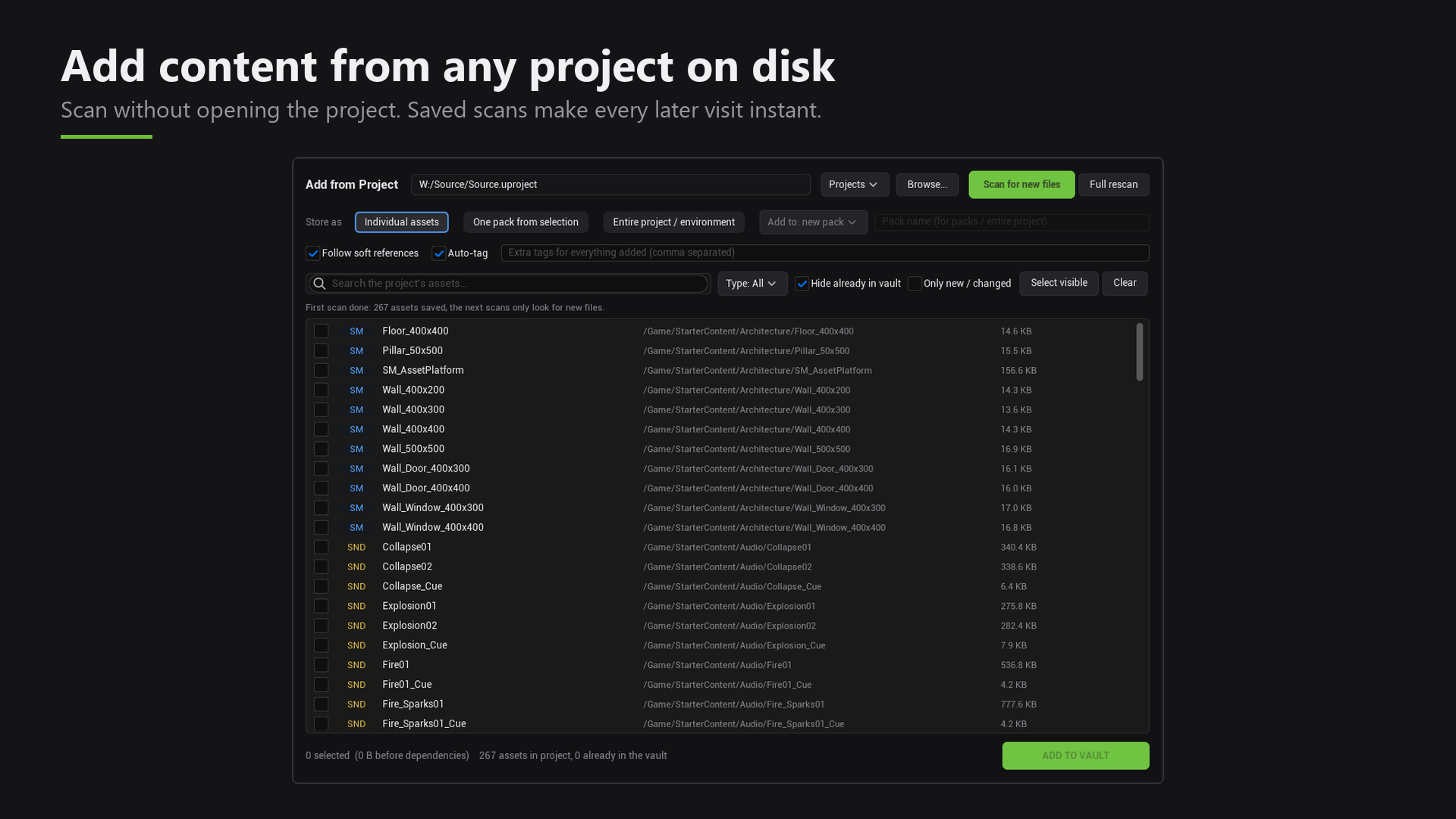
Steps
- Click Add from Project.
- Choose a
.uprojectfile. - Choose how to add it:
- Individual assets: store only the assets you pick.
- Pack: store a named group made from your selection.
- Entire project / environment: store everything, including maps.
- Optionally type your own tags.
- Click Add to Vault.
What comes with each asset
Materials, material instances and textures are stored together with each asset, so it works when you import it later.
Nothing is stored twice. If you add the same asset again, Asset Vault notices.
Tags are added for you based on the type and name of each asset, so a new library is searchable right away. You can add your own tags too, or turn auto-tagging off.
Scanning
The first time you open a project, Asset Vault scans it. The list is saved, so next time it opens instantly.
- Scan for new files only looks at what is new or changed.
- Full rescan starts over from scratch.
Assets that are already in your vault are marked. You can hide them.
Only add content you are allowed to copy. The vault stores files exactly as they are, and the original licence still applies.